KeyClicker – Automate Your Keyboard Instantly
KeyClicker is a type of software tool that simulates keyboard key presses automatically or enhances typing feedback. It is designed to reduce manual effort by performing repeated key actions or by providing responsive typing effects.
What is KeyClicker?
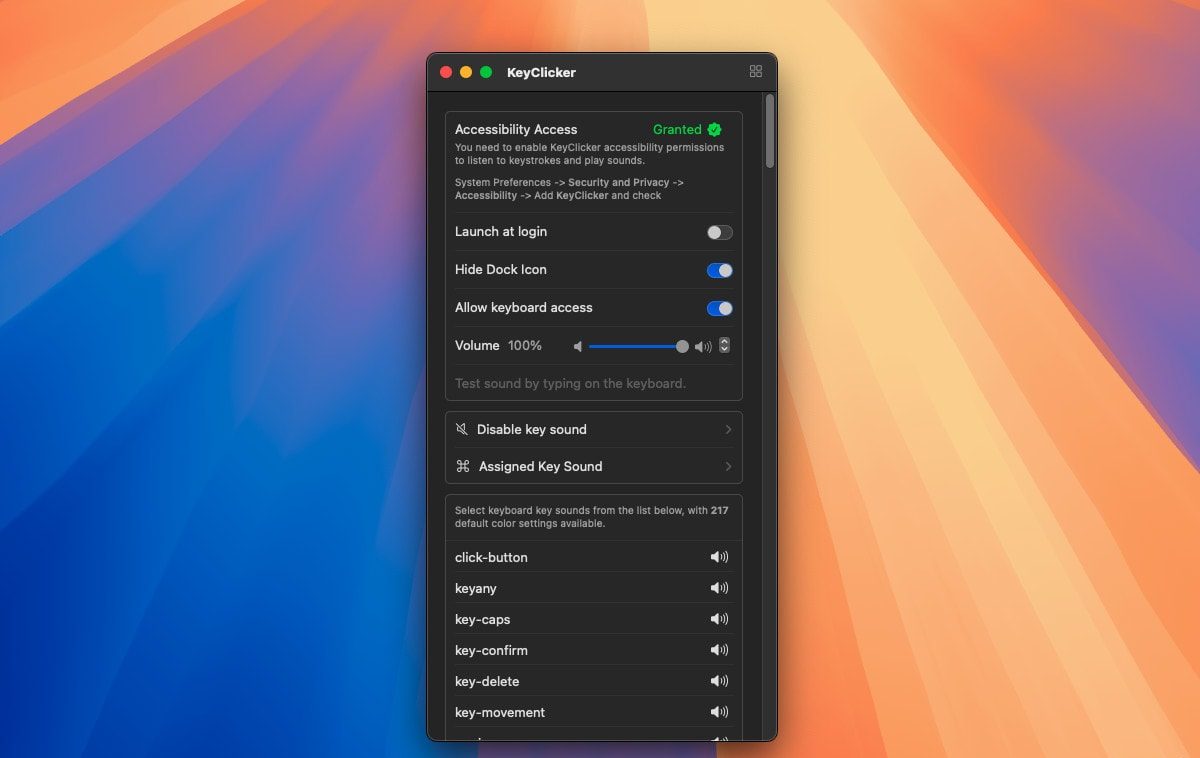
KeyClicker is a software tool that simulates keyboard inputs or improves the typing experience. It is commonly used for automation, testing, gaming, and adding sound effects to keyboard actions. Based on its type, it can either automatically trigger key presses or generate typing sounds when you press keys manually.
How KeyClicker Works
Input Simulation Mechanism
KeyClicker works by simulating keyboard or mouse inputs on a computer. Instead of requiring a user to press a key manually, the software sends virtual input commands to the operating system. These simulated actions behave like real keyboard presses or mouse clicks, allowing applications and games to detect them normally.
Keyboard Event Automation
The tool automates keyboard events by repeatedly triggering selected keys based on user settings. Users can choose specific keys, assign shortcuts, and configure automatic actions. Once activated, KeyClicker continuously performs those actions without requiring constant manual interaction.
Click Interval and Timing System
KeyClicker includes a timing system that controls how fast or slow the automated actions occur. Users can customize the delay between each key press or click in milliseconds or seconds. This helps create precise automation for gaming, productivity tasks, testing, or repetitive workflows.
Background Process Behavior
Most KeyClicker tools run quietly in the background while the user works on other tasks. The software uses minimal system resources and continues performing automated actions until stopped manually or through a hotkey command. This background operation allows smooth multitasking and uninterrupted automation.
Key Features of KeyClicker
Auto Key Pressing
KeyClicker automatically presses selected keyboard keys repeatedly without manual typing. It helps users perform repetitive tasks faster, improves workflow efficiency, and reduces continuous keyboard effort.
Speed Control
Users can adjust typing speed and delay timing according to their needs. This feature allows precise control over how quickly or slowly automated key presses occur.
Hotkey Control
Hotkey support lets users instantly start or stop automation using keyboard shortcuts. It provides quick access, improves convenience, and makes controlling automation much easier.
Repeat Mode
Loop mode continuously repeats selected key actions until manually stopped. This feature is useful for repetitive tasks, gaming actions, testing processes, and workflow automation.
Fast Performance
KeyClicker is designed to run smoothly with minimal system resource usage. Its lightweight performance ensures stable operation without slowing down the computer or applications.
Custom Keys
Users can choose specific keyboard keys for automation based on personal requirements. This flexibility makes KeyClicker suitable for gaming, productivity, testing, and daily tasks.
Types of KeyClicker Tools
Auto KeyClicker
Think of an Auto KeyClicker as your digital hands. It handles the heavy lifting by mimicking real keystrokes and clicks without you ever touching the desk. Whether you’re grinding in a game or stuck with mind-numbing data entry, this tool lets you set the pace.
Sound-Based Clicker
Not all tools are about speed; some are about the vibe. It transforms a quiet laptop into a tactile-sounding powerhouse with custom audio feedback.
Uses of KeyClicker
Gaming Automation
KeyClicker can automatically press keys repeatedly during gameplay. It helps players perform repetitive actions faster and reduces manual effort in games that require continuous clicking or key pressing.
Software Testing and QA
Developers and QA testers use KeyClicker to simulate keyboard input during software testing. It helps test application behavior, shortcuts, forms, and repeated user actions more efficiently.
Data Entry Tasks
KeyClicker can automate repetitive typing tasks in spreadsheets, forms, and databases. This saves time and helps users handle large amounts of repeated input with less manual work.
Productivity Improvement
By automating repeated keyboard actions, KeyClicker helps users complete routine tasks more quickly. It improves workflow efficiency and reduces time spent on repetitive activities.
Typing Simulation and Feedback Tools
Some KeyClicker tools provide keyboard sound effects or typing feedback while typing. These features improve the typing experience and make virtual keyboards feel more realistic and interactive.
Benefits of Using KeyClicker
Time Reclaiming
KeyClicker handle karta hai un boring tasks ko jo aapke ghantay kha jate hain. Automation ka matlab hai ke aapka keyboard khud kaam karega aur aap chill karenge.
Physical Relief
Ungliyon ka dard aur clicking ka stress ab khatam. Software aapki jagah clicks generate karta hai, taake aapki energy gaming ya creative kaam ke liye bachi rahe.
Precision Flow
Insan ghalti kar sakta hai, script nahi. Background mein chalti hui automation millisecond ki accuracy ke sath aapka workflow smooth banati hai.
Elite Advantage
Gaming ho ya software testing, speed aur consistency hi sab kuch hai. KeyClicker aapko wo stability deta hai jo manual effort se mumkin hi nahi.
System Requirements
Before using KeyClicker, make sure your computer meets the basic system requirements. Most KeyClicker tools are lightweight and can run smoothly on standard devices without high-end hardware.
Windows / macOS / Linux Compatibility
KeyClicker may support multiple operating systems depending on the version of the software. Many tools are designed for Windows, while some versions also work on macOS and Linux systems. Users should check the supported operating system before installation to ensure proper functionality.
Minimal Hardware Requirements
KeyClicker usually does not require powerful hardware. A basic computer with enough RAM, storage space, and a standard processor is typically sufficient. Since the software performs simple keyboard or click automation tasks, it can run efficiently even on older systems.
How to Use KeyClicker
KeyClicker is designed to automate keyboard presses and make repetitive tasks easier. After installing the software, users can customize keys, speed, and hotkeys according to their needs.
Installation Steps
First, download the KeyClicker setup file from the official website or trusted source. Open the installer and follow the on-screen instructions to complete the installation process. Once installed, launch the application from your desktop or start menu.
Setting Up Hotkeys
Hotkeys allow you to quickly start or stop the automation process using keyboard shortcuts. Open the KeyClicker settings panel and choose the keys you want to use as control shortcuts. Many users select simple combinations like F6, F7, or Ctrl + Shift keys for easy access.
Configuring Speed and Intervals
KeyClicker lets users control how fast the automatic key presses occur. You can set the click speed, delay time, and repetition interval based on your task requirements. Lower intervals create faster actions, while higher intervals provide slower and more controlled automation.
Starting and Stopping Automation
After configuring the settings, press the selected hotkey to begin the automated key actions. The software will continue performing the selected task until you press the stop hotkey or manually disable the automation feature. This makes it simple to control repetitive actions without constant manual input.
FAQS
What is KeyClicker?
KeyClicker is a tool designed to automate keyboard inputs or simulate typing actions on a computer system.
How does KeyClicker work?
It sends virtual keyboard signals to applications, allowing automatic key presses based on user settings.
Is KeyClicker free to use?
Many KeyClicker tools offer free versions, while some advanced editions may include premium features.
Can KeyClicker automate repetitive tasks?
Yes, it is commonly used to automate repetitive keyboard actions and improve workflow efficiency.
Does KeyClicker support custom hotkeys?
Most KeyClicker applications allow users to assign custom hotkeys for starting or stopping automation.
Is KeyClicker beginner-friendly?
Yes, many KeyClicker tools provide simple interfaces that are easy for beginners to understand and use.
Can KeyClicker simulate multiple keys?
Yes, advanced KeyClicker tools can automate combinations of multiple keyboard inputs.
Does KeyClicker work on Windows?
Most KeyClicker software is primarily designed for Windows systems.
Can KeyClicker run in the background?
Yes, many tools continue functioning while running silently in the background.
Is internet access required for KeyClicker?
No, most KeyClicker tools work completely offline after installation.
Can users adjust typing speed in KeyClicker?
Yes, users can usually customize delays, intervals, and typing speed settings.
Does KeyClicker consume high system resources?
No, most KeyClicker applications are lightweight and use minimal CPU and memory resources.
Is KeyClicker safe to use?
KeyClicker is generally safe when downloaded from trusted sources and used responsibly.
Can KeyClicker be used for gaming?
Some users use KeyClicker for gaming automation, but certain games may restrict automated tools.
Does KeyClicker contain viruses?
Official and trusted versions are typically safe, but downloading from unknown websites can be risky.
Can KeyClicker damage a keyboard?
No, because the software simulates virtual inputs rather than physically pressing keys.
Is KeyClicker legal to use?
Yes, using automation software is generally legal, though misuse may violate platform policies.
Who commonly uses KeyClicker?
Gamers, developers, testers, office workers, and productivity users frequently use KeyClicker tools.